How to Update Nintendo Switch with Atmosphere Firmware
So you’ve dabbed into the home‑brew scene and decided it’s time to bring the latest Atmosphere build to your Switch. The process isn’t magic, but it does involve a few moving parts—especially if you want to keep your saved data happy and avoid the dreaded boot loop. Below is a practical walk‑through that covers everything from prepping your microSD to flashing the new CFW, plus a few troubleshooting nuggets you might find handy.
What You’ll Need Before You Start
- A Nintendo Switch running a supported firmware version (generally 4.1.0 – 13.2.0 for most Atmosphere releases).
- A microSD card with at least 8 GB free space. Formatting to exFAT is recommended.
- Atmosphere files – the latest ZIP from the official GitHub repo.
- Hekate bootloader (or another compatible payload injector) already installed.
- A PC or laptop with a card reader, and a stable internet connection.
If anything on that list looks unfamiliar, pause and double‑check the basics. Jumping straight into flashing without a working bootloader is a common hiccup.
Step 1: Back Up Your Data
Even though Atmosphere itself is non‑destructive, a bad flash can wipe your save files. Copy the entire Nintendo folder from the microSD to a folder on your computer. While you’re at it, back up the boot.dat and bootloader folders in case you need to revert.
Step 2: Download the Latest Atmosphere Build
Head over to the official Atmosphere releases page. Look for the most recent .zip — it will be named something like Atmosphere-1.3.0-Release.zip. Download and extract it to a folder you can easily find.
Inside, you’ll see a few key directories:
bootloader– contains thepayload.binyou’ll inject via Hekate.atmosphere– the core CFW files.switch– optional home‑brew apps you might want to keep.
Step 3: Prepare the microSD Card
Insert the microSD into your computer. If you haven’t formatted it recently, a quick reformat to exFAT can clear out hidden corruption that sometimes trips the boot process.
Now copy the extracted folders onto the root of the card, overwriting any older Atmosphere files. Pay attention to the bootloader/payload.bin – this is what Hekate will launch.
Step 4: Update Hekate (If Needed)
Older versions of Hekate may not recognize newer payloads. Grab the latest hekate releases, extract hekate_ctcaer_XXXX.bin, and replace the existing bootloader/payload.bin on the SD card. Keep the old file as a fallback; you can rename it payload_old.bin just in case.
Step 5: Inject the Payload
Power off the Switch completely (hold the Power button for 12 seconds). Then, using a jig or a compatible payload injector, send the new payload.bin to the console. Hekate’s menu should appear, giving you a few options.
Choosing the Right Launch Option
- Launch – boots directly into Atmosphere.
- Launch > EmuNAND – starts the emulated NAND, keeping your stock firmware untouched.
- Launch > SysNAND – boots the real system NAND with Atmosphere active.
If you’re new to custom firmware, EmuNAND is the safest bet. It isolates changes, so a future update won’t mess with your official firmware.
Step 6: Verify the Update
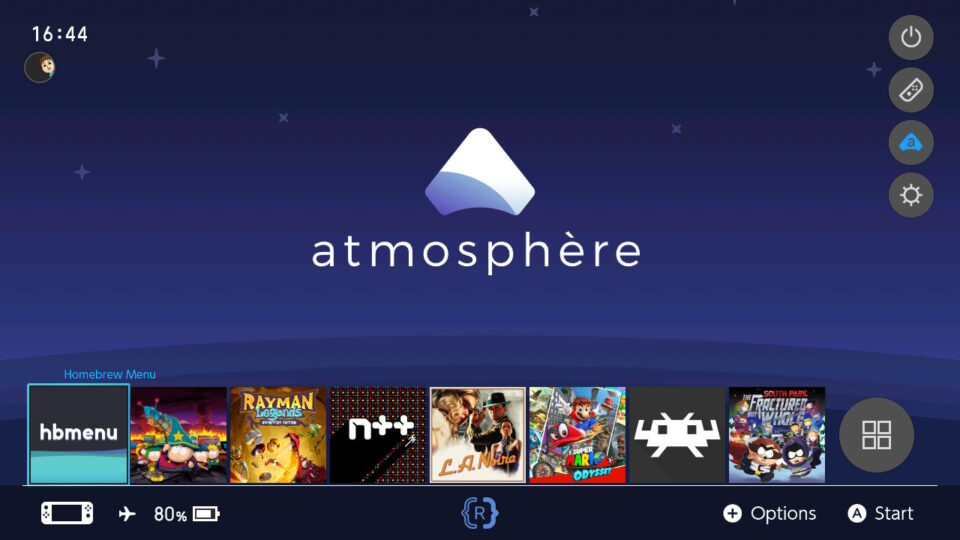
Once the Switch boots, open the Homebrew Menu and launch fusee-launcher if it’s there. It should display the Atmosphere version number – confirm it matches the ZIP you downloaded. You can also check the System Settings → System → Firmware version; it will still show the original Nintendo firmware, which is normal under CFW.
Troubleshooting Common Snags
Boot loop after flashing – Often caused by an incomplete copy of the bootloader folder. Re‑extract the ZIP, double‑check that payload.bin sits in /bootloader, and try again.
Hekate doesn’t recognize the payload – Make sure the file is named exactly payload.bin and placed in the root bootloader directory. Some users report success by renaming the file to hekate_ipl.bin and using Hekate’s “Custom Payload” option.
Homebrew apps won’t launch – Verify that the switch folder on the SD contains the homebrew_launcher.nro and that your Switch’s firmware isn’t newer than what the apps support. Updating the apps themselves often solves the issue.
Keeping Your System Fresh
Atmosphere updates roll out roughly every few weeks. To stay current without breaking things:
- Subscribe to the GitHub releases RSS feed.
- Before each new update, repeat the backup step.
- If you’re using EmuNAND, consider cloning the latest base NAND image from a friend with a clean install.
That way, you’ll get the newest features—like improved GPU emulation or expanded homebrew compatibility—while sidestepping the dreaded “soft‑brick” scenario.
Final Thoughts
Updating Atmosphere isn’t a one‑click affair, but with the right preparation it’s surprisingly straightforward. A clean backup, the latest Hekate payload, and a careful copy of the new files are the three pillars of a smooth refresh. Should anything go sideways, the community forums are a goldmine of step‑by‑step fixes, and most issues can be reversed by swapping back the old payload.bin and restoring your backup.
Now that you’ve got the latest firmware under the hood, it’s time to explore the ever‑growing library of homebrew titles, emulators, and tweaks that make the Switch feel like a truly personalized handheld.