How to Watch Movies on Google Play: A Simple Guide
Ever stumbled across a film trailer and thought, “I want to see the whole thing right now”? Google Play makes that impulse easy to satisfy, as long as you know the right steps. Below is a relaxed walk‑through that covers everything from setting up an account to troubleshooting playback hiccups. No jargon, just practical pointers you can follow on a laptop, phone, or smart TV.
Set Up a Google Account (If You Haven’t Already)
Google Play ties everything to a single Google account. If you already use Gmail, YouTube, or Android, you’re probably good to go. Otherwise, create an account by visiting accounts.google.com and following the prompts.
- Choose a memorable password—Google will suggest one if you’re stuck.
- Verify your email or phone number; this helps with purchase receipts.
- Consider adding a payment method now to avoid interruptions later.
Navigate to the Movies Section
Open the Google Play Store app on your device or head to play.google.com/store/movies on a web browser. You’ll land on a curated homepage featuring new releases, popular titles, and genre shortcuts.
Use the search bar if you have a specific title in mind; typing just a few letters usually pulls up suggestions. For browsing, the “Genres” dropdown lets you explore everything from indie dramas to animated comedies.
Pick Between Rent or Buy
Google Play offers two ways to enjoy a film: rent it for a limited window or purchase it for unlimited streaming and offline access. Rental periods differ—most movies give you 48 hours after you press play, while others let you watch for 30 days but only for a few hours per day.
- Rent: Ideal for one‑off viewings or budget‑conscious nights.
- Buy: Best for collections, especially if you love re‑watching classics.
Pricing varies by release date and popularity; newer blockbusters can cost $5‑$20 to rent, while older titles might be a couple of dollars to purchase.
Make the Purchase
After you’ve selected rent or buy, click the price button. A small dialog appears asking you to confirm the transaction and choose a payment method. Google stores your card details securely, but you can also use PayPal or Google Play credit if you have any.
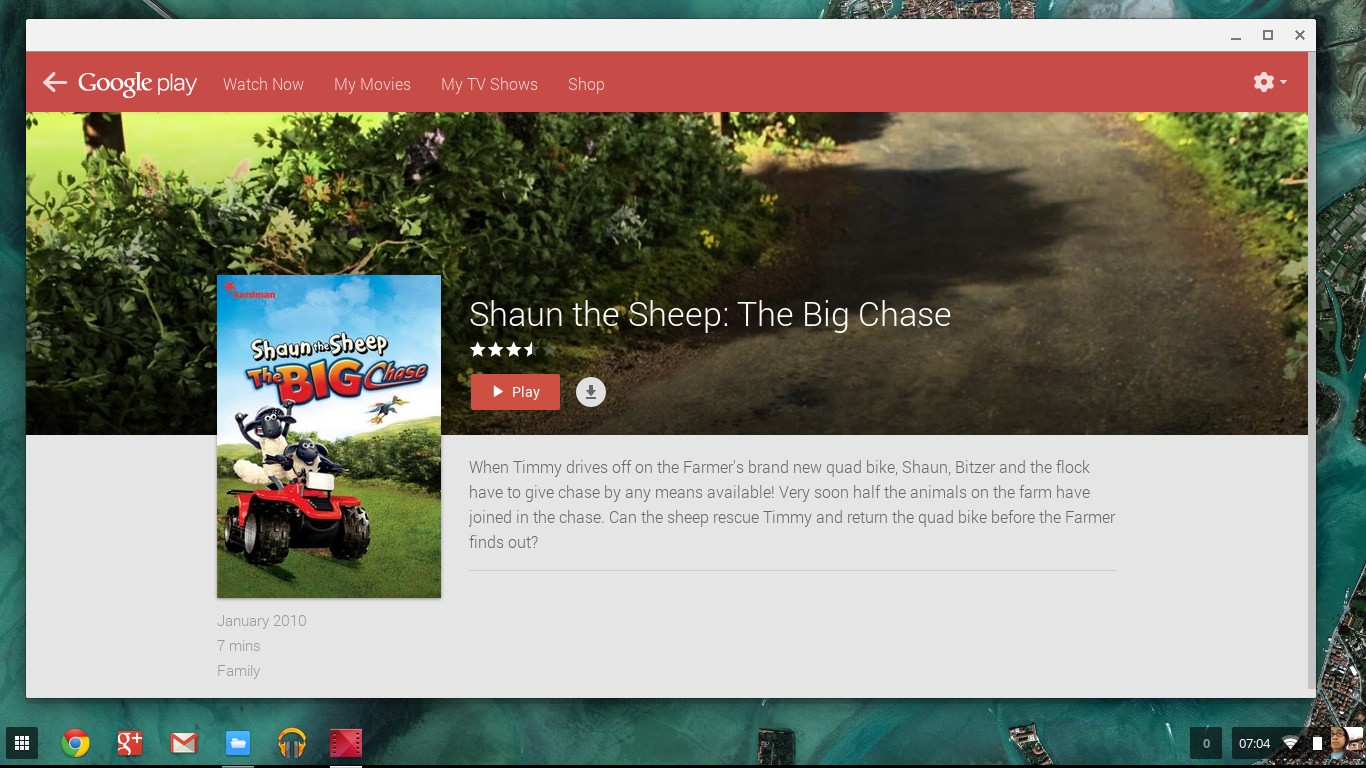
Once confirmed, the movie appears instantly in your library under “My Movies.” No waiting for downloads unless you explicitly choose to save it for offline viewing.
Start Watching: Devices and Apps
Here’s a quick rundown of where you can press play:
- Computer (Chrome/Firefox): Use the web player; just click the big “Play” button.
- Android phone or tablet: Open the Google Play Movies & TV app (or simply the Google TV app on newer versions).
- iOS device: Download the Google TV app from the App Store; it syncs with your Google account.
- Smart TV or streaming stick: Look for the Google TV, Chromecast, or YouTube app—sign in and your library shows up.
Enable Offline Viewing (Optional)
If you travel a lot or have spotty Wi‑Fi, you might want a local copy. In the app, tap the download icon next to the movie title. The file stays in the app’s cache and can be played without an internet connection, but remember it’s tied to your Google account—removing the app also removes the download.
Adjust Playback Settings
While the video is playing, you can tweak a few things without leaving the screen:
- Toggle subtitles on/off via the “CC” button.
- Switch audio tracks if the movie offers multiple languages.
- Use the gear icon to change video quality manually; lower settings help on slow connections.
Most devices also let you fast‑forward, rewind, or set a sleep timer—a handy feature for late‑night binges.
Troubleshoot Common Hiccups
Even with a smooth interface, occasional problems pop up. Here are the most frequent and how to address them:
- Playback stutters: Lower the video quality or pause for a few seconds to buffer.
- “Movie not available in your region”: Google Play respects licensing; a VPN might help, but use it responsibly.
- Payment declined: Double‑check card expiration dates, address details, or try another payment method.
- App crashes: Clear the app cache (Settings → Apps → Google TV → Storage → Clear Cache) and restart.
Keep an Eye on Your Purchases
All rentals and purchases live in the “Library” tab. From there you can:
- Re‑watch bought movies at any time.
- Check the remaining rental window for movies you’ve rented.
- Remove titles you no longer want cluttering the list.
Google also emails receipts after every transaction—good for budgeting or resolving any disputes.
Explore Extras and Recommendations
Google Play isn’t just a storefront; it suggests similar titles based on your viewing history. Try the “Because you watched…” carousel for hidden gems. Occasionally, the platform runs limited‑time promotions—keep an eye on the “Deals” section for discounted rentals.
Now you have a clear roadmap from opening the store to enjoying the final credits. Grab your popcorn, settle in, and let Google Play handle the rest.