Navigating iPhone App Store Country Change Issues Solutions
Switching the country setting on your iPhone’s App Store can feel like a maze of warnings, red screens, and baffling prompts. Whether you’ve moved abroad, need a regional app, or want to tap into a different subscription catalog, the process is rarely seamless. Below is a pragmatic walk‑through of the most common roadblocks and how to untangle them without losing your purchases or your sanity.
Why Change Your App Store Country?
Before diving into the technical steps, it helps to clarify the motivation. A few typical reasons include:
- Relocating to a new country and wanting local apps that aren’t available in your original store.
- Accessing exclusive content, such as regional games or streaming services.
- Redeeming a gift card that’s tied to a different marketplace.
- Managing multiple subscriptions that are country‑specific.
Each scenario may trigger a distinct set of restrictions, which is why a one‑size‑fits‑all answer rarely works.
Primary Barriers You’ll Encounter
1. Active Subscriptions and Pre‑Orders
Apple won’t let you flip the store while a subscription is ongoing or a pre‑order sits in your queue. The logic is simple: billing is tied to the original region’s financial ecosystem.
Solution: Cancel the subscription (or let it run its course) and wait for the confirmation email. For pre‑orders, either receive the item or request a refund before proceeding.
2. Store Credit and Gift Card Balance
Any lingering credit, whether from a refund or a gift card, must be cleared. Attempting a country switch with a remaining balance throws an error that reads “You have store credit in this region.”
To resolve it, spend the credit on a low‑cost app or music track, or contact Apple Support for a manual transfer.
3. Payment Method Mismatch
Apple ties each storefront to a local payment method—credit card, PayPal, or carrier billing that matches the country. Using a U.S. Visa in the Japanese store, for example, will be rejected.
Fixes include:
- Adding a payment method issued in the target country.
- Switching to “None” as your payment option if you plan to use only gift cards.
- Ensuring the billing address aligns with the new country.
Step‑By‑Step Guide to Change the Country
- Back up your device. A quick iCloud or iTunes backup safeguards app data in case something goes awry.
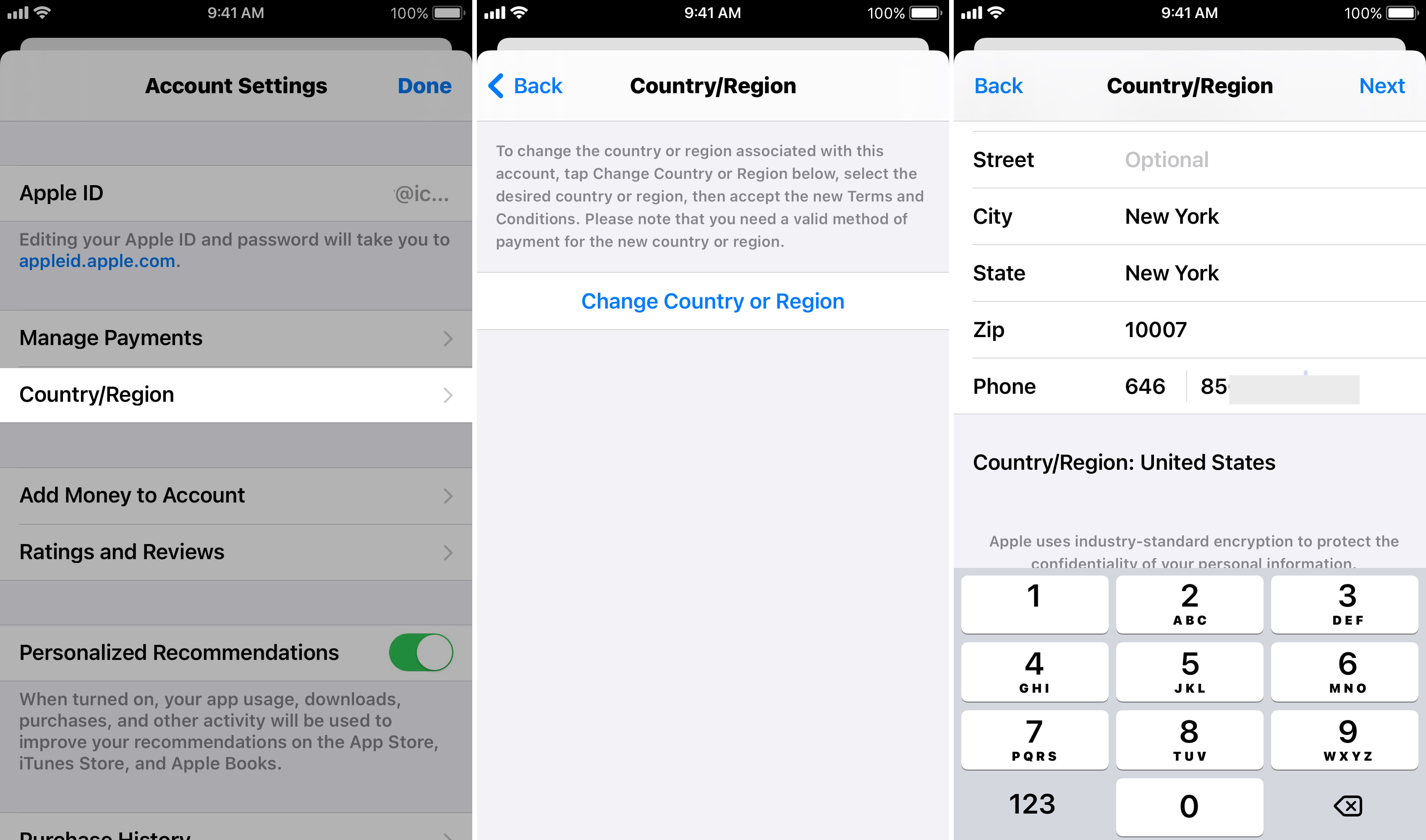
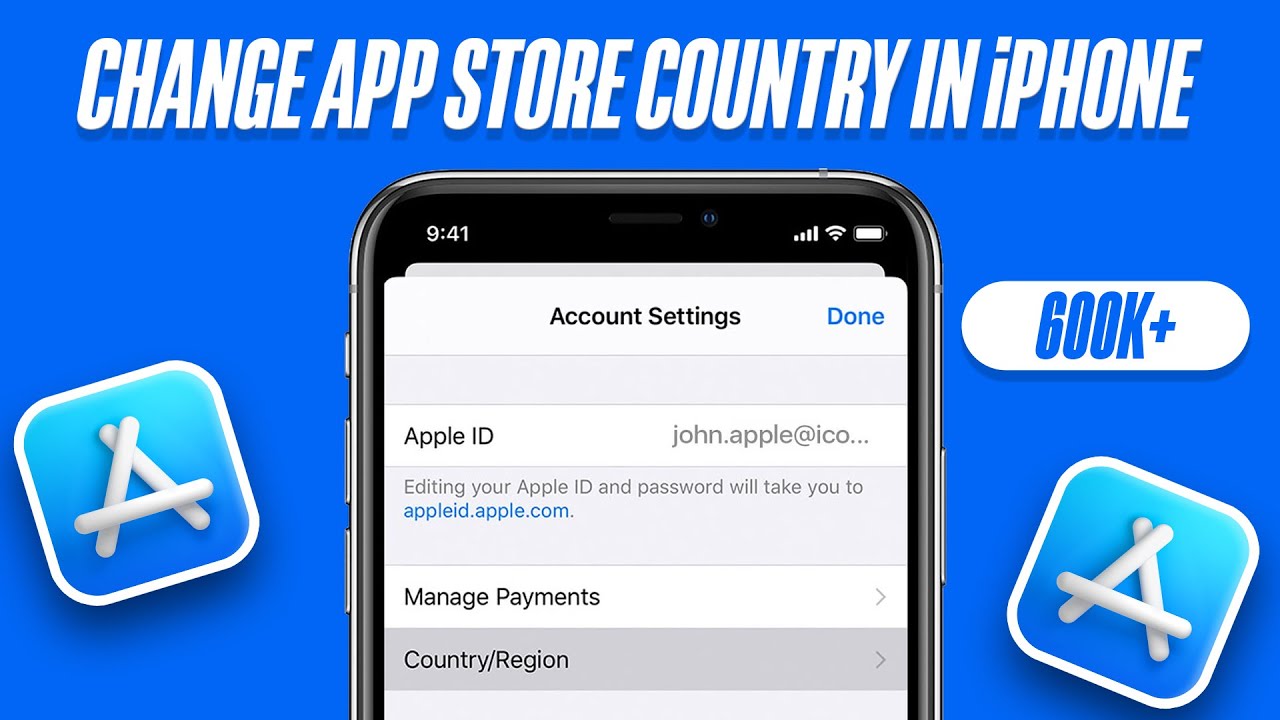
- Open Settings → tap your name at the top → Media & Purchases → View Account. You may need to sign in again.
- Select Country/Region, then tap Change Country or Region.
- Choose the new country from the list. A terms‑of‑service screen will appear; accept it.
- Enter a valid payment method for the chosen country. If you’re using a gift card, input its code here.
- Confirm the change. Your Apple ID will now point to the new storefront, and the App Store will reload with region‑specific offerings.
If any step fails, note the exact error message. Apple’s support pages often have a dedicated article matching that phrasing.
What to Do If You’re Stuck
Even with the checklist, you might hit a wall. Here’s a quick triage:
- Check for pending Family Sharing. A child’s account or an active family purchase can block the switch.
- Review iCloud storage plans. Some plans are region‑locked; downgrading temporarily can free you up.
- Contact Apple Support. Use the chat option for faster response; have your Apple ID, device model, and a screenshot of the error ready.
Many users report success after a simple “sign out → restart → sign back in” cycle, especially when the device has cached old region data.
Managing Multiple Regions Without Constant Switching
If you frequently need apps from different countries, consider these workarounds:
- Create separate Apple IDs. One for each region; switch between them via Settings → Media & Purchases.
- Leverage VPNs cautiously. While a VPN won’t bypass payment restrictions, it can help you discover region‑specific apps before you decide to switch.
- Use Family Sharing. Invite a secondary Apple ID (from the target country) to your family group, then download shared purchases without altering your primary account.
These strategies keep your primary account clean while offering the flexibility you need.
Final Tips for a Smooth Transition
— Keep a record of all payment methods you add; removing them later can be a hassle.
— Before you leave a country, download any apps you might need later; they stay tied to the original storefront.
— Remember that some apps simply won’t run after a region change because they’re coded to check the store’s locale.