The Ultimate Guide to Free Fonts for Your MacBook
If you’ve ever scrolled through design forums or stared at a bland system font, you know the appeal of fresh typefaces. Luckily, there’s a thriving world of free fonts for MacBook users that can transform documents, presentations, and creative projects without costing a dime. Below, we’ll walk through the best sources, simple installation steps, and a few practical tips to keep your font library tidy and legal.
Why Bother with Free Fonts on macOS?
MacBooks ship with a solid set of system fonts, but they’re designed for readability, not flair. Adding free fonts lets you:
- Inject personality into personal or professional designs.
- Experiment with typography before committing to a paid license.
- Match branding guidelines for side gigs or hobby projects.
Most of the time, the extra visual punch comes at zero cost, making it a win‑win for creatives on a budget.
Top Places to Find Reliable Free Fonts
Not every download site is created equal. Here are four trustworthy hubs that curate high‑quality typefaces, each with its own flavor.
- Google Fonts – A massive library of open‑source fonts, searchable by style, language support, and popularity. All are ready for desktop use.
- Font Squirrel – Curates only fonts with clear commercial‑free licenses, plus a handy “Webfont Generator” for developers.
- DaFont – Offers a wide range of novelty and display fonts. Pay attention to the “Free for personal use” tags and verify the license before any commercial work.
- Behance & Dribbble – Designers often share exclusive freebies alongside their portfolios. These fonts tend to be trendy and well‑crafted.
Before you download, glance at the licensing details—most sites label each font as personal‑only, commercial‑free, or attribution‑required.
Step‑by‑Step: Installing Free Fonts on Your MacBook
Getting a new typeface onto macOS is surprisingly straightforward. Follow these three steps, and you’ll be typing in style within minutes.
- Download the font file. Most sites provide .ttf (TrueType) or .otf (OpenType) formats. Save the zip archive to your Downloads folder and extract it.
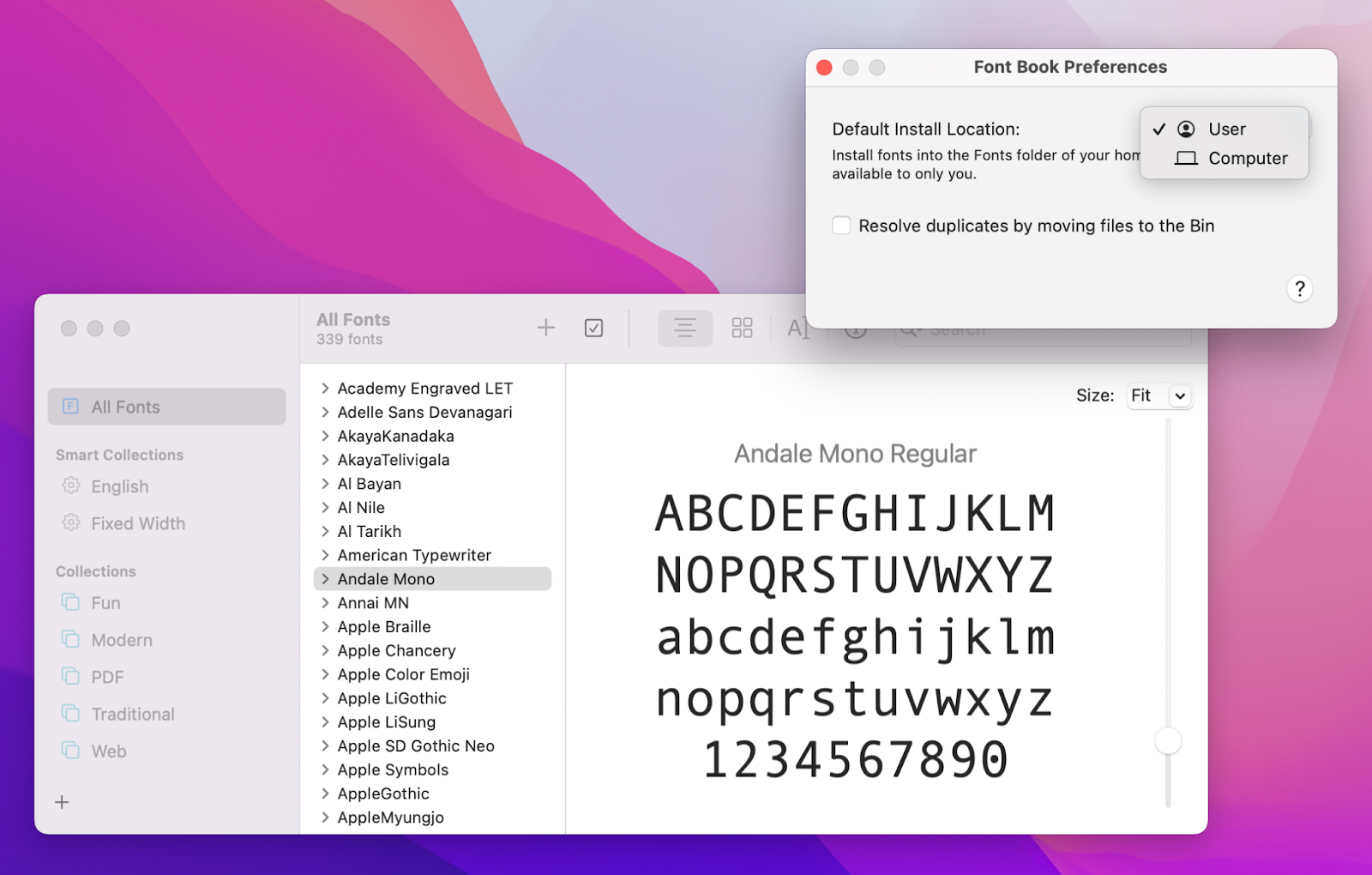
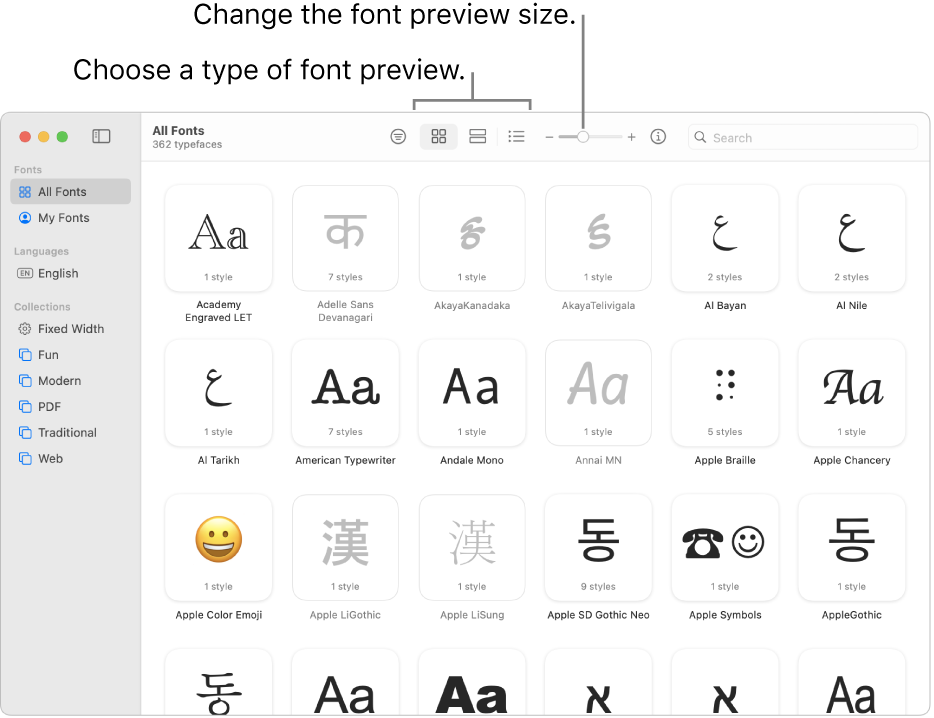
- Open the Font Book app. You can find it via Spotlight or in the Applications folder. Drag the extracted .ttf or .otf file onto the Font Book window.
- Validate and install. Font Book will preview the typeface and warn of any conflicts. Click “Install Font” to add it to your system collection. The new font appears instantly in apps like Pages, Photoshop, and Microsoft Word.
Pro tip: Use Font Book’s “Collections” feature to group free fonts separately from your paid library, keeping things organized.
Managing Your Font Library Without Overload
A cluttered font folder can slow down design software and make it harder to find the right style. Here’s how to stay lean.
- Disable unused fonts. In Font Book, right‑click a font and choose “Disable” rather than deleting—this keeps the file for later use without loading it each time you launch an app.
- Create smart collections. Group fonts by category (e.g., “Serif – Free”) or project (e.g., “Logo Drafts”). Smart collections auto‑populate based on tags you assign.
- Regularly audit. Every few months, review your active fonts. If a typeface hasn’t been used in a while, consider archiving it in an external drive.
These habits not only speed up your workflow but also prevent accidental font clashes that can cause document rendering errors.
Legal and Licensing Nuances You Shouldn't Ignore
Even when a font advertises “free,” there are often hidden conditions. Understanding these can save you headaches down the line.
- Personal vs. commercial use. Many fonts are free for personal projects but require a paid license for client work. Always check the specific terms.
- Attribution requirements. Some open‑source fonts, like those under the SIL Open Font License, ask that you credit the creator in your project documentation.
- Modification rights. If you plan to tweak a font—adjusting weight or adding characters—ensure the license permits derivative works.
If you’re ever unsure, reach out to the font’s creator via the platform’s contact link; most designers are happy to clarify usage rights.
Quick Tips for Choosing the Right Free Font
Not every free typeface will suit every project. Keep these guidelines in mind when browsing.
- Readability matters. For body text, stick with clean sans‑serif or classic serif options; decorative fonts belong in headings or logos.
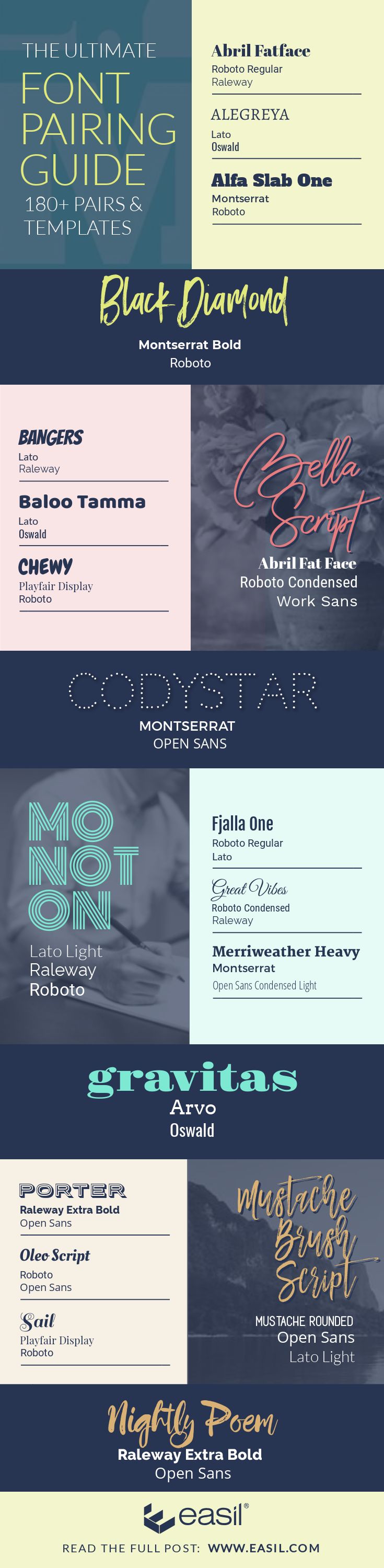
- Match the mood. A playful script works for invitations, while a geometric sans‑serif conveys modern tech vibes.
- Check language support. If you need accented characters or non‑Latin scripts, verify that the font includes the necessary glyphs.
A little experimentation can reveal hidden gems that elevate your design without sacrificing clarity.
FAQ
Can I use free fonts from Google Fonts for commercial projects?
Yes. All Google Fonts are released under open‑source licenses that allow both personal and commercial use without attribution.
What’s the difference between .ttf and .otf files?
.ttf (TrueType) is widely supported and works well for most applications, while .otf (OpenType) offers advanced typographic features like ligatures and alternate characters.
Is it safe to download fonts from Behance?
Generally, yes—Behance hosts files directly from designers who specify the licensing terms. Always read the accompanying description to confirm usage rights.
How do I remove a font I no longer need?
Open Font Book, locate the font, right‑click, and select “Remove.” If you disabled it instead of deleting, you can re‑enable it later.