How to Activate Windows 11: A Step‑by‑Step CMD Guide
Got a fresh Windows 11 install and the dreaded “Activate Windows” banner staring back at you? You don’t need to hunt through menus or click endless dialogs. A few keystrokes in the Command Prompt can get your system legit and ready for work.
Why Use Command Prompt for Activation?
Most users stick to the graphical interface, but the command line offers a few perks:
- Speed: One command, and you’re done.
- Clarity: The output tells you exactly what succeeded or failed.
- Scriptability: Perfect for IT pros rolling out dozens of PCs.
If you’ve ever felt the UI lag behind or the trouble‑shooter get stuck, the CMD route is a breath of fresh air.
Prerequisites
Before you dive in, make sure these boxes are ticked:
- A valid Windows 11 product key (you’ll see a 25‑character string).
- Administrator rights on the machine.
- Internet access – the activation servers need to be reachable.
- Command Prompt opened as Administrator (right‑click > Run as administrator).
If any of these are missing, the process will stall and you’ll end up chasing error codes.
Step‑by‑Step Activation Process
1. Open an Elevated Command Prompt
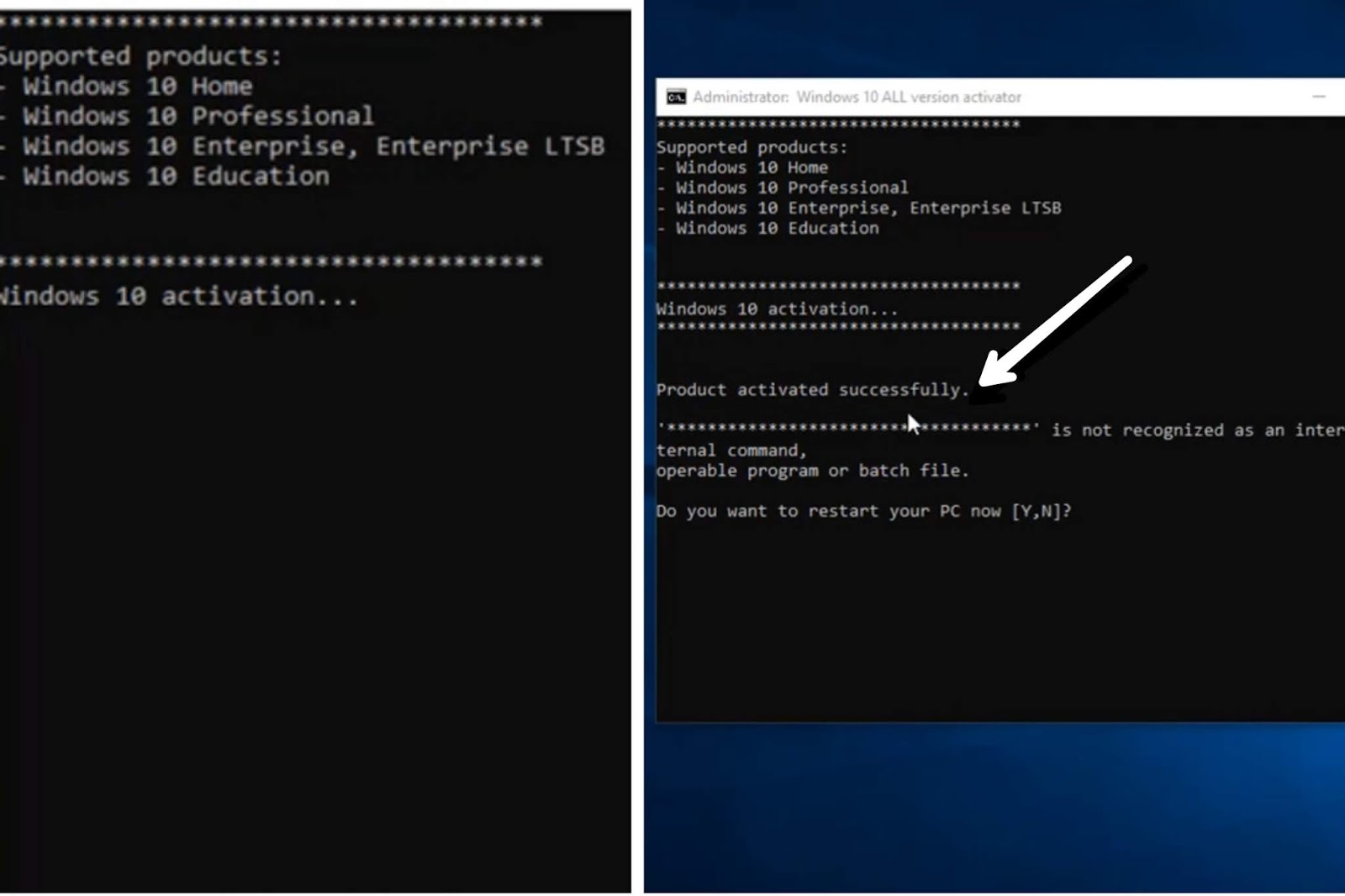
Press Win + X and select “Windows Terminal (Admin)” or “Command Prompt (Admin)”. A black window with “Administrator: Command Prompt” in the title bar confirms you’re good to go.
2. Install the Product Key
Type the following, replacing XXXXX‑XXXXX‑XXXXX‑XXXXX‑XXXXX with your actual key, then press Enter:
slmgr /ipk XXXXX-XXXXX-XXXXX-XXXXX-XXXXX
If the key is accepted, you’ll see a short “The product key was successfully installed” message. A typo here will throw a “0xC004F074” error – double‑check your entry.
3. Connect to Microsoft’s Activation Servers
Now trigger the online activation:
slmgr /ato
This command reaches out to Microsoft’s servers and attempts to validate the key. A clean “The software licensing service reported that Windows is activated” line means you’re golden.
4. Verify Activation Status
To be absolutely sure, run:
slmgr /dlv
The detailed view will list the activation state, license type, and expiration (if it’s a volume license). Look for “License Status: Licensed”.
5. Optional: Reset the Licensing Store (If You Hit a Snag)
Sometimes the store gets corrupted. Resetting it can clear stubborn errors:
net stop sppsvcren %windir%\System32\spp\tokens.dat tokens.bak
net start sppsvc
slmgr /rearm
After the reboot, repeat steps 2 and 3. It’s a bit of extra work, but it often saves a call to support.
Troubleshooting Common Issues
Even with a perfect key, things can go sideways. Here are the usual culprits:
- 0xC004C003 – Invalid product key: Most likely a typo or a key meant for a different edition (Home vs. Pro).
- 0xC004F074 – No internet connection: Check your network, ensure no firewall blocks ports 80/443.
- 0x80070490 – Activation server unavailable: Microsoft may be performing maintenance; wait a few minutes.
If the error code isn’t familiar, searching the slmgr error list on Microsoft’s docs usually yields a quick fix.
Tips to Keep Your License Secure
Once Windows 11 is activated, treat the key like any other valuable credential:
- Store it in a password manager, not a plain‑text file.
- Avoid sharing it in public forums or screenshots.
- For corporate environments, consider using a KMS or MAK instead of individual keys.
- Regularly back up the
sppfolder if you rely on volume licensing.
These habits cut down the risk of accidental leaks and keep your systems compliant.
Now that you’ve walked through the command line, you should be able to activate any Windows 11 machine swiftly – no more nagging reminders, just a clean, licensed desktop ready for work.