How to Customize iPhone Stock Widgets for a Personal Touch
Ever glance at your iPhone’s home screen and wish the widgets felt a bit more “you”? Apple’s stock widgets are handy, but many users overlook the subtle ways they can be tweaked. In this guide we’ll walk through the basics, share a few creative tricks, and help you shape a screen that mirrors your style without diving into third‑party apps.
What Are iPhone Stock Widgets?
Stock widgets are the built‑in blocks Apple ships with iOS—from Weather and Calendar to the ever‑useful Battery indicator. They live on your home screen or in the Today View, offering bite‑size info at a glance.
Unlike the old “widget” concept that required separate apps, these are integrated into the operating system. That means they’re lightweight, always up‑to‑date, and respect Apple’s design language.
Why Bother Customizing?
- Instant access to the data you actually need.
- A cleaner, more cohesive look that reduces visual clutter.
- The satisfaction of making a device truly feel like yours.
Even a tiny adjustment—like swapping the default calendar view for a week‑at‑a‑glance layout—can shave seconds off your morning routine.
Getting Started: Adding a Widget
First things first: you need the widget on the screen.
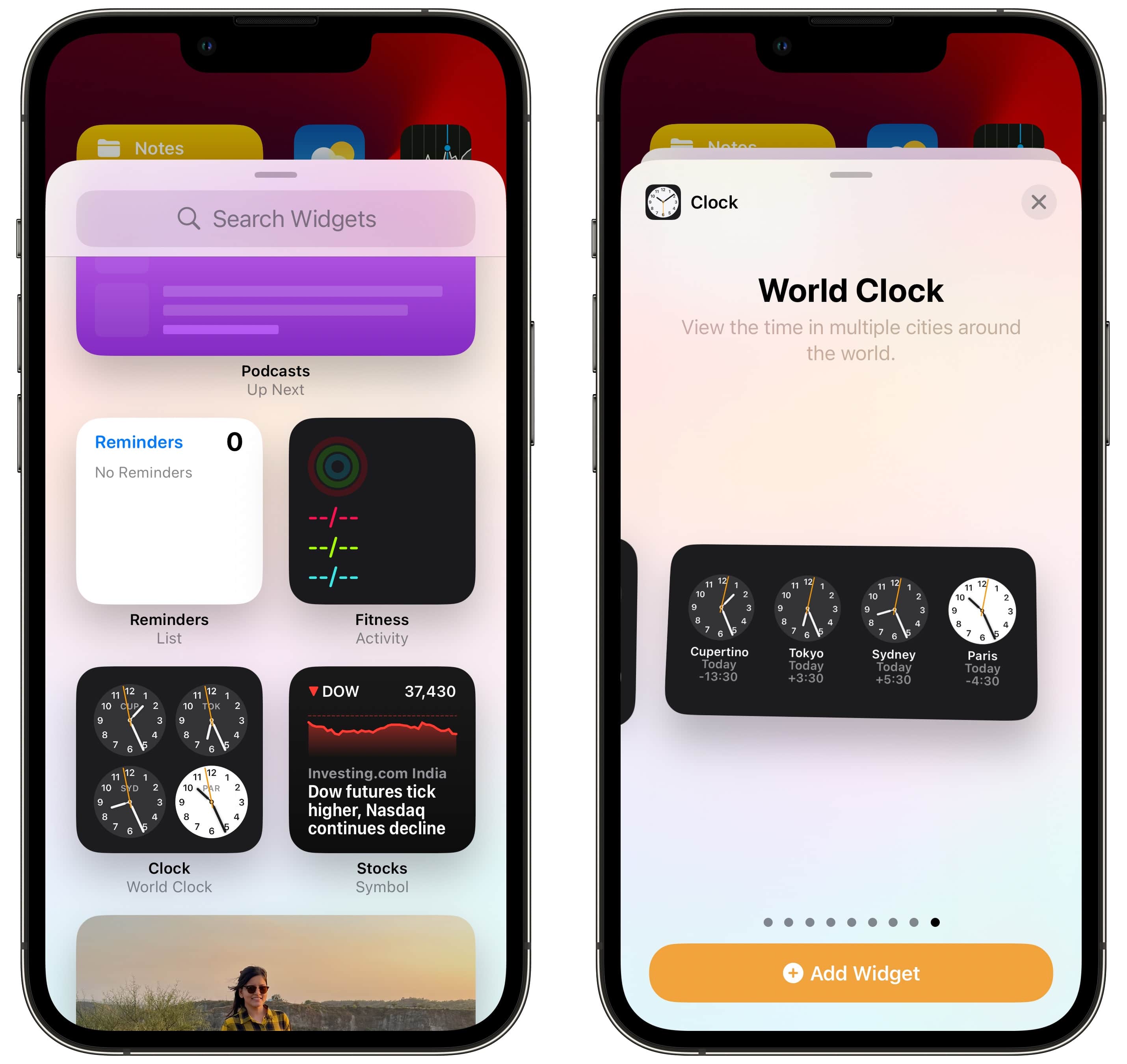
- Touch and hold an empty spot on your home screen until the icons jiggle.
- Tap the “+” button that appears in the top‑left corner.
- Scroll or search for the widget you want—most are listed under “Apple.”
- Select the size (small, medium, or large) and hit “Add Widget.”
- Drag it to your desired spot and press “Done” in the corner.
That’s the core process. From here, the real fun begins.
Resizing and Repositioning
Widgets come in three preset sizes, but you can experiment. A medium Weather widget might perfectly cover a vacant space next to your calendar, whereas a large Battery widget provides a quick glance at all connected accessories.
To change size later, just tap the widget while the icons are still jiggling. A pop‑up will let you flip through the available dimensions.
Choosing the Right Widget Type
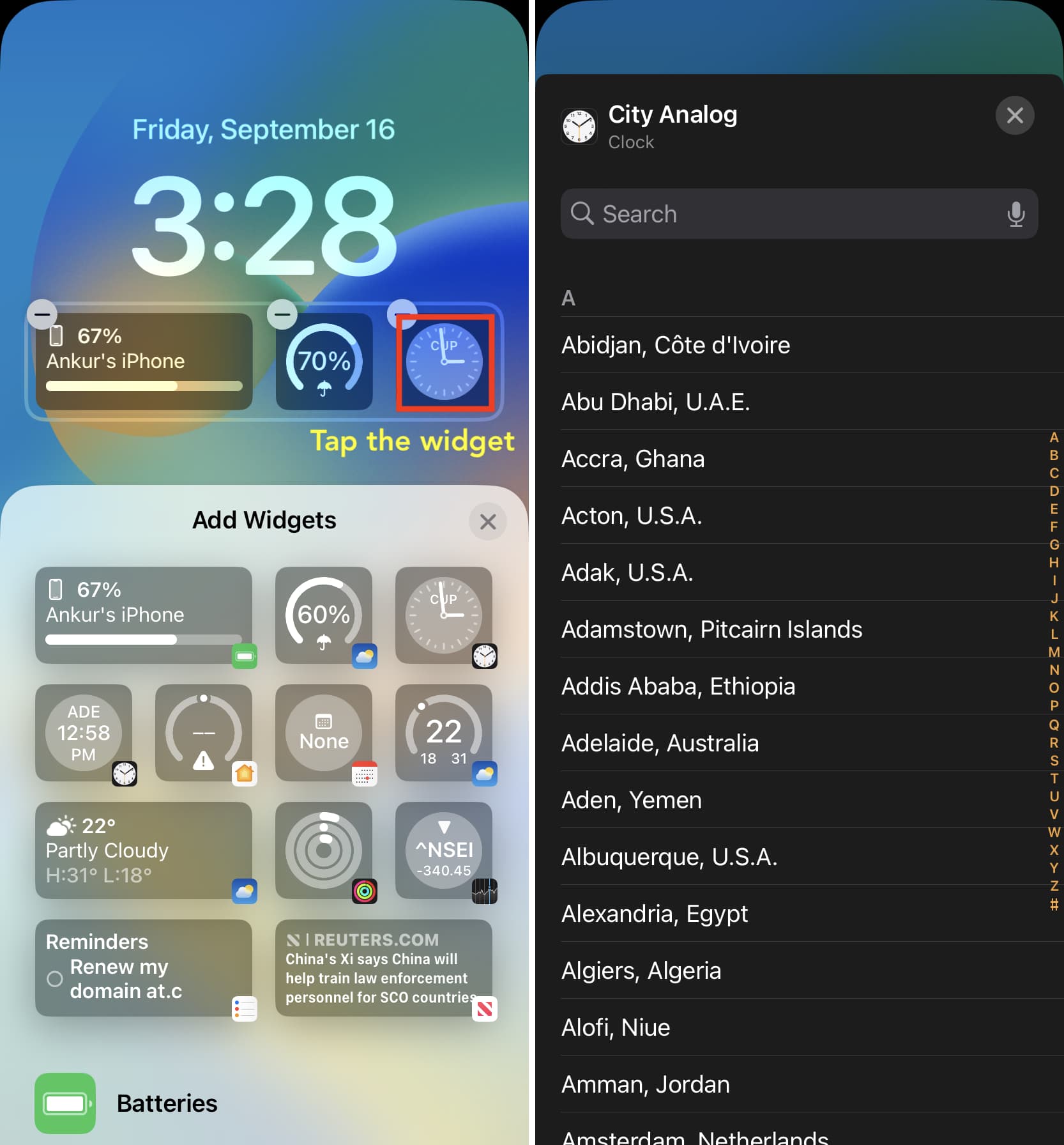
Some stock widgets have multiple modes. The Calendar widget, for instance, can display today’s events, the entire month, or a compact “upcoming” list. Switching modes is as easy as tapping the widget and selecting “Edit Widget.”
For the Notes widget, you can pick a specific folder to showcase—great for keeping a to‑do list front and center.
Smart Stacks: Bundling Multiple Widgets
One of iOS’s slickest features is the Smart Stack. It lets you stack up to ten widgets on a single spot and swipe through them. By default, iOS creates a stack of weather‑related widgets, but you can customize it:
- Press and hold the stack, then tap “Edit Stack.”
- Tap the “+” sign to add any other stock widget you like.
- Drag items to reorder, or tap the “‑” to remove one.
- Enable “Smart Rotate” for the system to automatically show the most relevant widget based on time of day and usage patterns.
This technique lets you keep a tidy home screen while still accessing a variety of information.
Fine‑Tuning Appearance
iOS doesn’t let you change the widget’s color palette, but you can influence the vibe by:
- Using dark mode or light mode strategically—some widgets switch to a darker background that can make white text pop.
- Choosing a wallpaper that complements the widget’s shape and color. A subtle gradient often works better than a busy photo.
- Aligning widgets with the same visual weight. Pair a large widget with two small ones to maintain balance.
Pro Tips for a Cohesive Home Screen
- Group by function. Keep productivity tools (Calendar, Reminders, Notes) together, and place leisure widgets (Music, Podcasts) in a separate zone.
- Leave breathing room. A cramped screen feels chaotic; a little empty space helps each widget breathe.
- Use widgets as shortcuts. Tapping a widget often opens its associated app—think of the Maps widget as a quick‑launch for directions.
- Rotate weekly. If you have a habit of checking different data on different days, swap out widgets each week to keep the layout fresh.
Common Mistakes to Avoid
It’s easy to over‑decorate. Adding too many widgets can slow down the home screen’s responsiveness. Also, remember that larger widgets consume a bit more battery, so keep an eye on your usage if you notice a dip in endurance.
Lastly, don’t forget to test after each change. A widget that looks great in portrait mode may feel cramped in landscape, especially on iPad.
Putting It All Together
Now that you understand the basics, try a quick experiment: replace the default small Battery widget with a medium one, add a Smart Stack of Weather and Calendar, and set a dark‑mode wallpaper that makes the white text pop. Step back, take a look, and ask yourself whether the new layout feels more personal.
If the answer is “yes,” you’ve just taken the first step toward a home screen that serves you—not the other way around. Keep tweaking, and soon the widgets will feel like an extension of your daily rhythm.